
How to set up a Reolink camera
Updated October 31, 2026 · By the GuardRemote team
The steps depend on how the camera connects. Find your type below, then finish with the settings every camera should have changed on day one. Your camera's quick-start guide in the box has the model-specific details.
Before you mount anything
- Install the free Reolink app on your phone, and the Reolink Client on a computer if you want a bigger screen.
- Set the camera up on a table first, then mount it once it is connected and you have seen the picture.
- For Wi-Fi and battery models, check signal strength at the mounting spot with your phone.
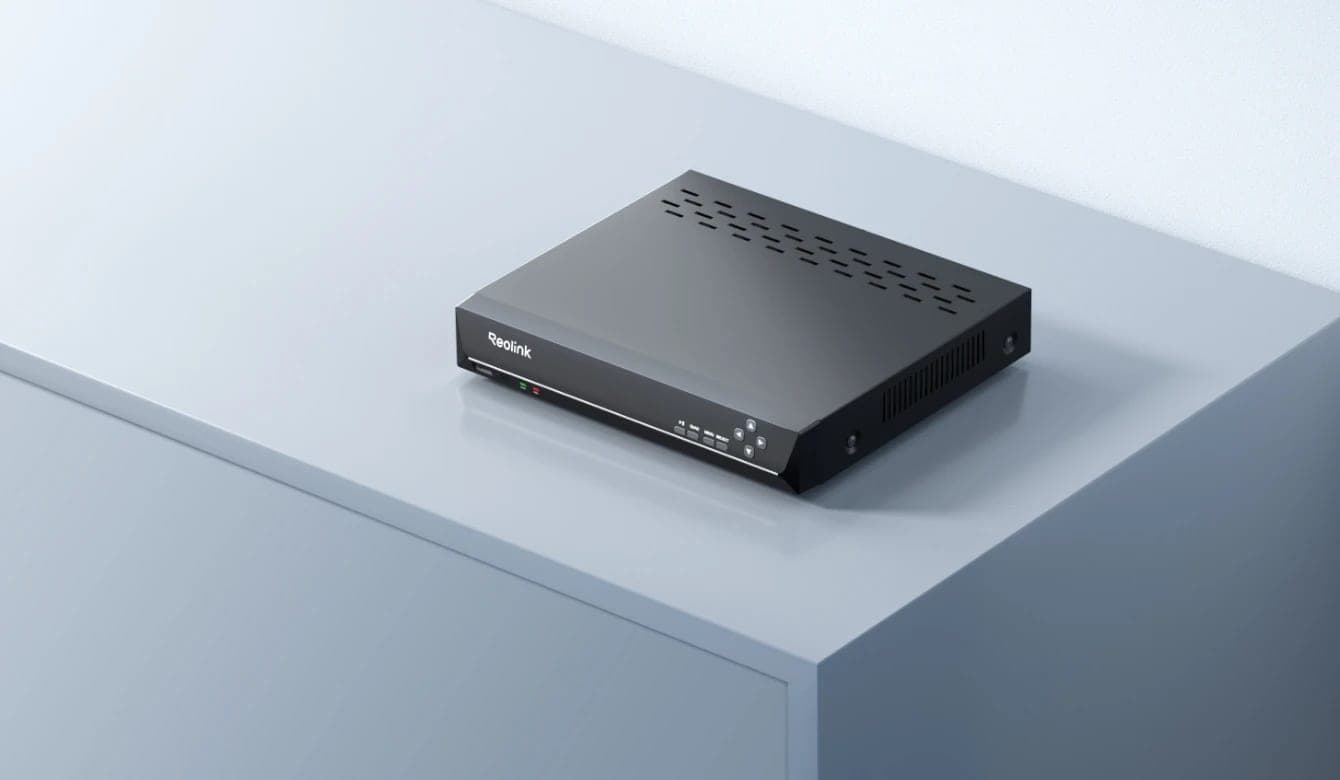
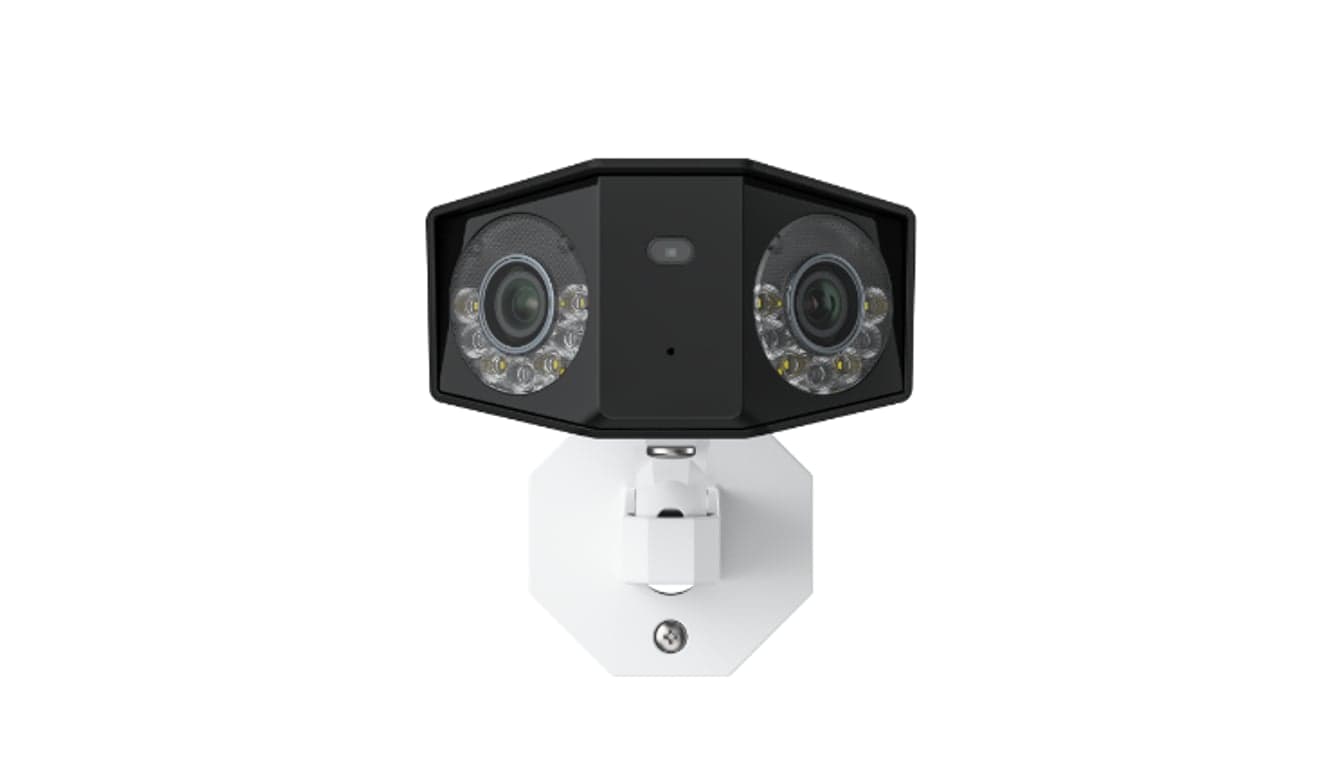
PoE cameras with an NVR
- Connect the NVR to your router and to a monitor, and power it on.
- Plug each camera into one of the NVR's PoE ports (or a PoE switch on the same network) with a Cat5e or Cat6 cable.
- The NVR finds the cameras on its own. Follow the setup wizard on the monitor, then add the NVR to the Reolink app.
Wi-Fi cameras
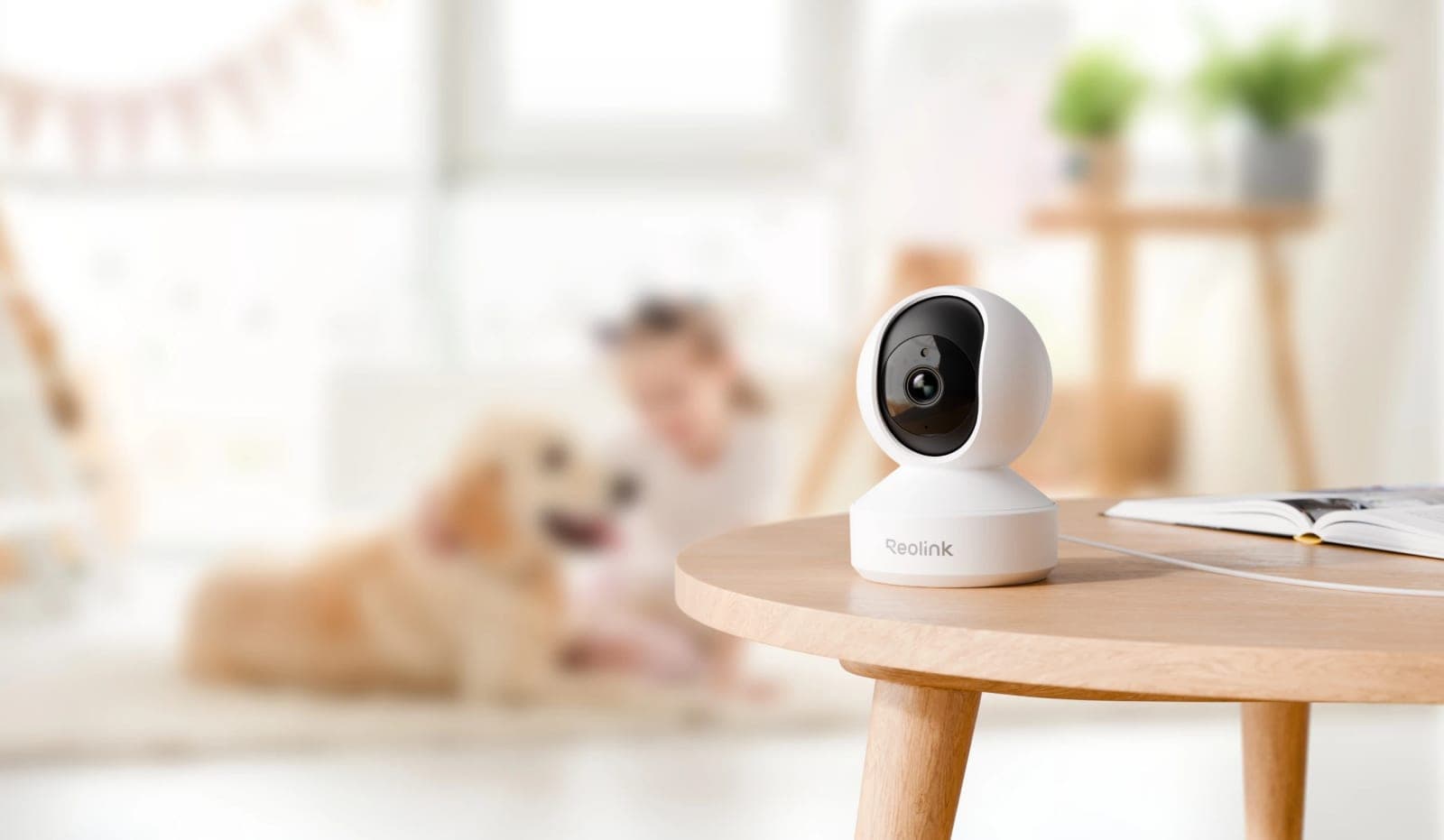
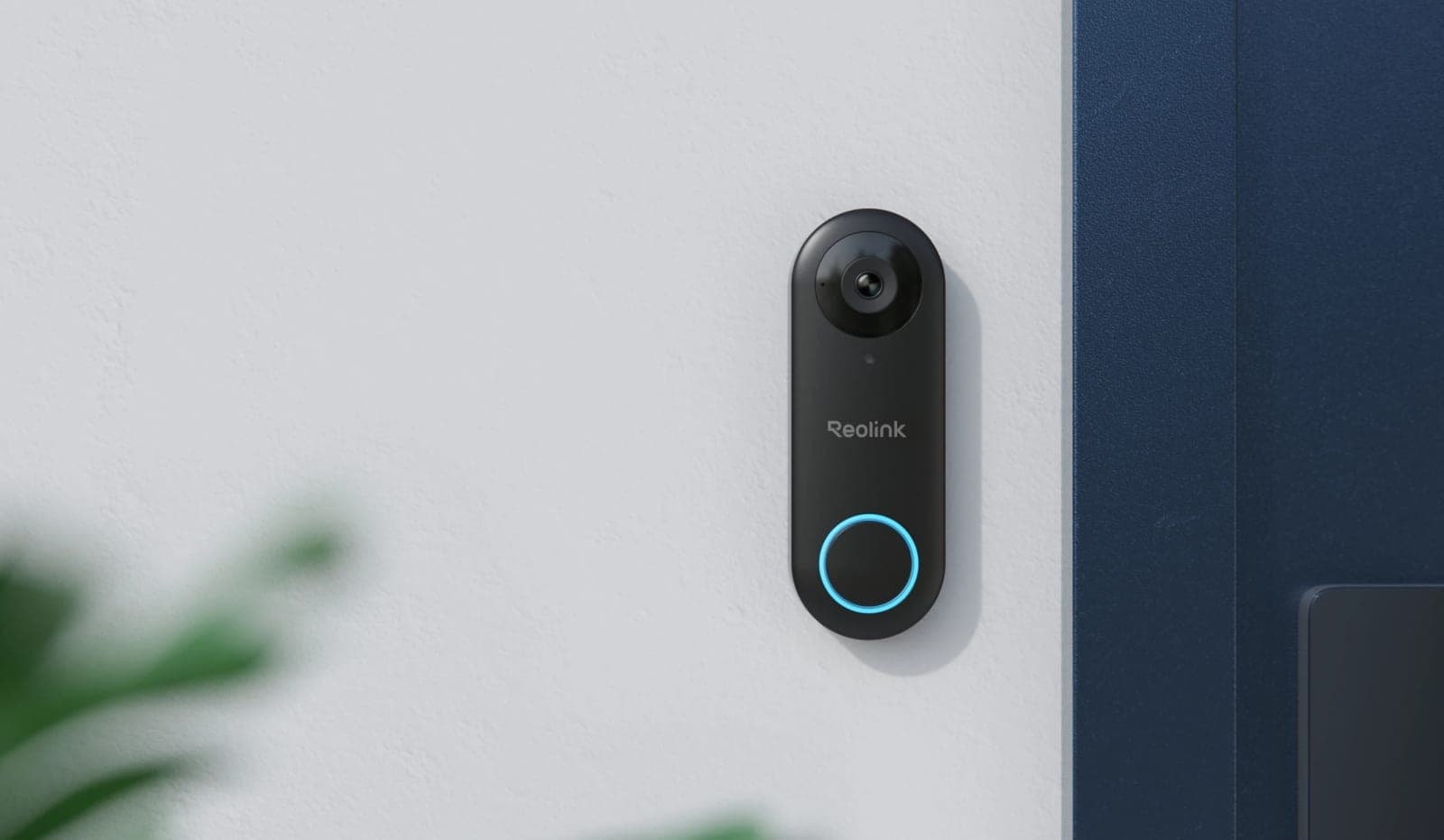
- Power the camera from its adapter.
- In the app, tap add device and scan the QR code on the camera.
- Choose your Wi-Fi network and enter the password, then show the QR code on your phone to the camera when asked.
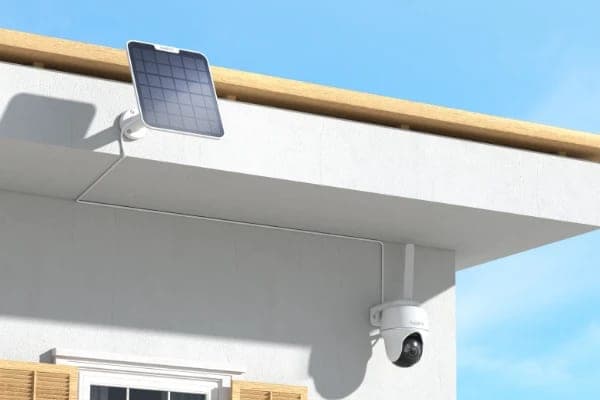
Battery and solar cameras
- Charge the battery fully before first use.
- Insert a microSD card if the camera does not have one.
- Turn the camera on and add it in the app by scanning the QR code, the same way as a Wi-Fi camera.
- Aim the motion sensor where people approach, not across a busy road, to save battery.
4G LTE cameras
- Buy a SIM card with an active data plan from a carrier with coverage at the site.
- Insert the SIM and a microSD card, charge the battery, and power on.
- Add the camera in the app with its QR code. It connects over the cellular network, so no Wi-Fi is needed.
Settings to change on day one
- Set a strong, unique password for the camera or NVR.
- Update the firmware from the app or client.
- Draw motion zones so trees and the street do not trigger alerts.
- Turn on person and vehicle detection where the model supports it, and set when you want phone alerts.
- Check the recording schedule (continuous or motion) and that the card or drive is formatted.
Common questions
The app cannot find my camera. What now?
For Wi-Fi models, make sure your phone is on the same network and close to the camera, and that you entered the Wi-Fi password correctly. For PoE models, check the cable and that the NVR or switch port is powered.
Can someone help me choose?
Call our team at +1 (754) 240-5850 or request a quote, and we will help you pick the right cameras and kit.
Specs are from the manufacturer's product pages. Storage and power figures are planning estimates; check the datasheet for your exact model. Reolink products link to reolink.com, where Reolink sells and ships them.